
Use KnightCode in the terminal
Run knightcode from the folder you want to work in. KnightCode uses that folder to discover files, instructions, and configuration, and to group saved sessions. If you have not...
Run knightcode from the folder you want to work in. KnightCode uses that folder to discover files, instructions, and configuration, and to group saved sessions. If you have not installed KnightCode or chosen a model yet, follow the Quickstart.
KnightCode may ask whether you trust the working folder before loading its project resources. See Project trust.
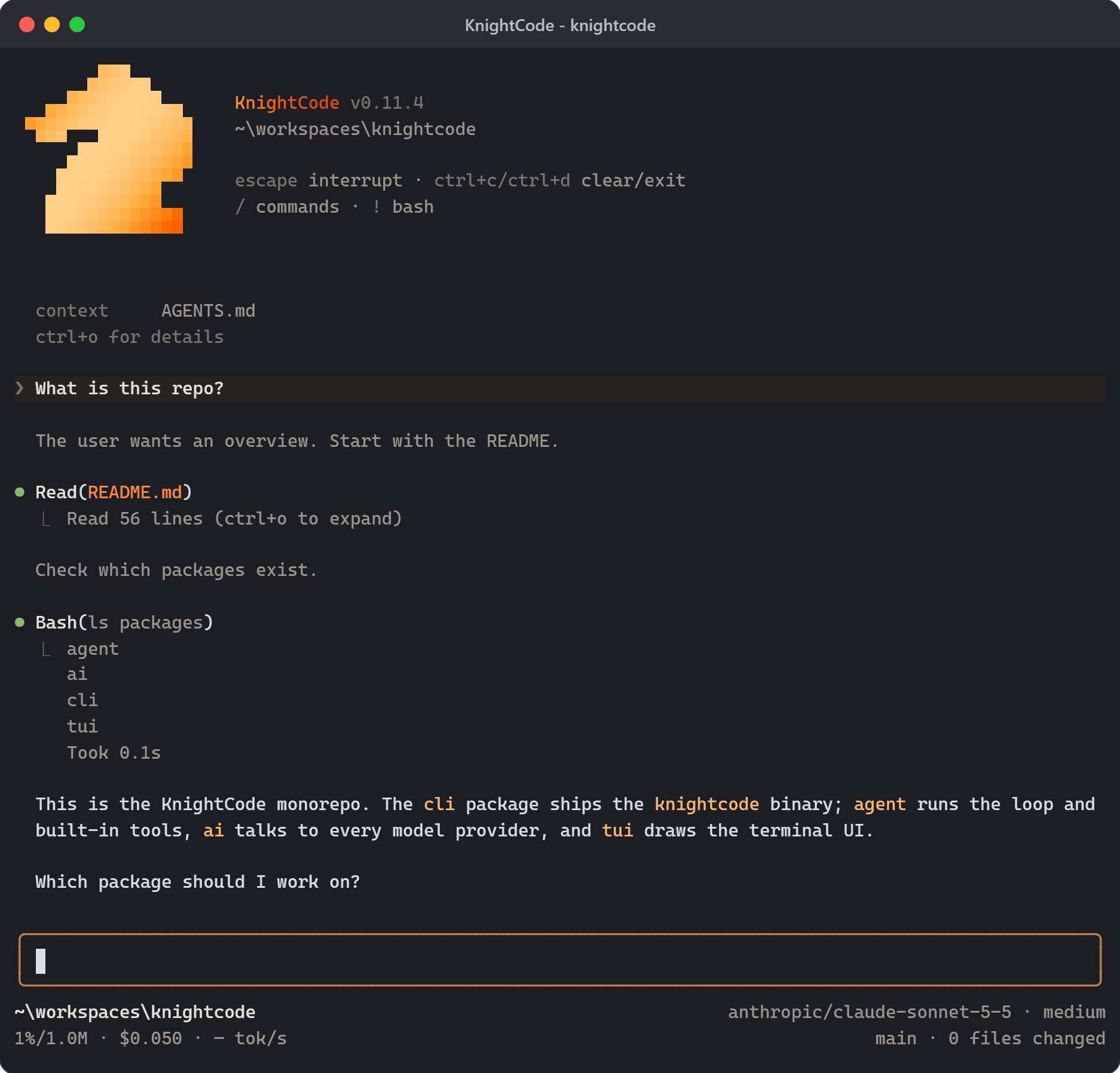
The transcript shows your prompts, KnightCode's responses, tool calls, results, and errors. You write prompts and commands in the editor. The footer shows the current folder and session, the model and thinking level, context usage, accumulated cost, the latest output speed, and the git branch with its changed files and pull request.
Enter a prompt
Type a request and press Enter to send it. Use Shift+Enter to add a line, or press Ctrl+G to work on a longer prompt in your configured external editor.
To include files or images:
- Type
@to search for a file and add it to your prompt. - Press
Tabto complete a path. - Paste an image or drag it into a compatible terminal.
Follow KnightCode's work
KnightCode shows each tool call and result while it works. Press Ctrl+O to expand or collapse tool output. Press Ctrl+T to show or hide thinking blocks.
The startup header shows the version, folder, and main keys, and KnightCode lists the instructions and resources it
loaded below it. In a truecolor terminal the knight in the header shimmers once at startup, then holds still; the
shimmer stops early if the header scrolls away. The editor frame keeps one color at every thinking level;
the footer shows the current level. Shell input (! or !!) keeps a distinct frame color. The
header, editor frame, and footer come from the built-in ui extension; set "extensions": ["-builtin:ui"] in
settings for the plain layout. The footer updates as the model uses context and reports usage.
KnightCode does not ask before every tool call. Review commands and changed files, and use a sandbox for untrusted or unattended work. See Security.
Change direction
You can send more input while KnightCode is working:
| What you want | Action |
|---|---|
| Adjust the current task | Type a message and press Enter |
| Add work after the current task | Type a message and press Alt+Enter |
| Return queued messages to the editor | Press Alt+Up |
| Stop the current task | Press Escape |
A message sent with Enter waits until the current response and its tool calls finish, then guides the next response. A follow-up sent with Alt+Enter waits until KnightCode finishes the current task. Aborting returns queued messages to the editor.
Windows Terminal reserves some Alt shortcuts. See Terminal Setup for the Windows alternatives.
Change the model or settings
Type / to search the available commands. The commands you will use most often are:
/modelselects a model. PressCtrl+Lto open the same selector./thinkingselects how much reasoning the current model uses. PressShift+Tabto cycle through supported levels./loginand/logoutmanage provider access./settingschanges common preferences./toolsturns the web tools, questions, the scratchpad, and the classifier gate off, on for this session, or on by default.
Prompt templates, skills, and extensions can add more commands to the same menu. See Choose a Model, Configuration, or the complete Slash Commands reference.
Continue or start over
KnightCode saves sessions automatically unless session persistence is disabled.
/newstarts a new session./resumeopens another saved session./namegives the current session a recognizable name./sessionshows its file, ID, message count, token usage, and cost./undogoes back to an earlier user message and can restore the files edited after it.
Use /tree, /fork, or /clone when you want to explore another approach without losing existing work. Use /compact to reduce the conversation history sent to the model. See Sessions and Context for these workflows.
After leaving KnightCode, run knightcode --continue from the same folder to resume its most recent session.
Run a terminal command
Prefix a command with ! to run it and include its output in the conversation:
!git statusUse !! when you want to run a command without sending its output to the model.
Web Tools
Two tools give the agent read access to the web. Both ship disabled; turn them on with /tools.
| Tool | What it does |
|---|---|
webfetch | Fetches a URL and returns the page as markdown, 400 lines at a time. The agent pages with offset/limit like read, or passes grep to get only matching lines. Responses are cached for 15 minutes, capped at 5 MB, and time out after 30 seconds. Private, loopback, and link-local addresses are refused. |
websearch | Searches the web and returns up to 10 results (default 5) as title, URL, and snippet. DuckDuckGo needs no key but may rate-limit; Brave Search needs an API key. |
/tools lists each tool with its current state; pick one to open its settings panel. Status cycles through three states:
| State | Effect |
|---|---|
| Disabled | The tool is not offered to the model |
| Enabled for this session | On until knightcode exits, including across /new, /resume, and /fork; nothing is written to disk |
| Enabled by default | On in every session |
The websearch panel adds two rows: Provider (duckduckgo or brave) and Brave API key. Choosing Brave without a stored key opens the key prompt at once. Get a key at https://brave.com/search/api/; the free plan is enough. The key is also read from BRAVE_API_KEY when none is stored, but the provider only switches to Brave when you pick it. Keys show masked in the panel.
The same changes work without the panel:
/tools websearch on        # this session
/tools webfetch always     # every session
/tools webfetch off
Settings are stored in ~/.knightcode/agent/tools.json, owner-readable only because it can hold the Brave key. --tools and --exclude-tools still apply: a tool excluded on the command line stays off whatever /tools says, and a tool named in --tools or defaultTools is on for that session unless you turned it off with /tools.
Fetched pages and search results are marked as untrusted in the tool output so the model treats instructions inside them as data, but treat the tools like any other network access: a fetched page can still influence what the agent does next.
Questions
/tools ask_user on lets the agent ask you one to three multiple-choice questions and wait for your answers, instead of guessing at intent or trade-offs it cannot settle from the code. The recommended option comes first.
| Key | In the question picker |
|---|---|
Up/Down | Choose an option |
Enter | Answer and go to the next question; on the last one, submit |
Tab | Add a note to the chosen option |
Left/Right | Move between questions |
Esc | Close the note or text field; otherwise interrupt the turn |
The last row, None of the above, opens a field for your own answer. Submitting with questions left unanswered asks first, and Go back returns to the first one. The keys are the tui.select.*, tui.input.tab and tui.input.submit keybindings (tui.input.submit is Enter in the note and answer fields), so remapping them changes the picker too.
In RPC mode the questions arrive as select and input dialogs, one per question, without notes. In a run with no one to ask, such as print and JSON modes, the tool answers at once and the agent takes the recommended options and states them as assumptions.
ask_user is off by default. When on, its declaration adds about 230 tokens to each request. Plan mode turns it on while planning.
Scratchpad
/tools scratchpad on gives each session a private working directory under the system temp directory (<tmp>/knightcode-<uid>/scratchpad/<session-id>, or <tmp>\knightcode\scratchpad\<session-id> on Windows). The system prompt names it and asks the agent to put throwaway scripts and intermediate output there instead of in your project.
The agent keeps its working notes there in notes.md: task list, decisions, file:line facts, next steps. After each compaction the first 8 KB of notes.md is put back into the context once, so those notes outlive the summary. Open the file to see what the agent is tracking.
The scratchpad is off by default. When on, it adds about 60 tokens to the system prompt, which is cached; the notes cost tokens only after a compaction. It is not a tool, so --tools and --exclude-tools do not affect it. /fork starts a new, empty directory, and the operating system clears old ones with the rest of its temp files. If <tmp>/knightcode-<uid> already exists but is not a private directory you own, as when another user on a shared machine created it first, the scratchpad stays off and KnightCode reports why.
Classifier gate
/tools classifier-gate asks a classifier model whether each bash, powershell, write, or edit call could cause harm that is hard to undo: deleting data beyond the task, exposing secrets, changing system configuration, or publishing to a remote service. A call rated risky (probability 0.5 or higher) asks for confirmation; in print and JSON modes it is blocked.
Pick the model in the panel's Model row. It lists classifier models from providers you are logged in to, such as TypeSafe Jev through OpenRouter. The gate fails closed: a call runs without asking only when the classifier scores the whole call below 0.5. With no model set, when the classifier errors or returns no answer, or when the call's input is over 4,000 characters (as a large write often is), the call asks for confirmation or is blocked. Interrupting the turn closes the confirmation.
The gate is off by default. Each gated call is one classifier request, billed by its provider, and adds its latency before the tool runs.
Copy, export, or share results
Press Ctrl+X or run /copy to copy the last assistant response. Use /export to save the session as HTML or JSONL.
Use /share to upload the session and get a viewer link. By default, Radius authentication makes the artifact visible to your Radius organization; otherwise, KnightCode creates a private GitHub gist through the GitHub CLI. The sessionShareDestination setting can force either destination. Review the session first because it can contain prompts, tool output, file contents, and credentials exposed during the conversation.
Adjust the terminal
Fullscreen mode, the default, keeps the editor and status area fixed while the transcript scrolls within the terminal window. Regular mode uses the terminal's normal scrollback. Choose a mode through /settings or --tui-mode.
Terminal support for mouse input, keyboard shortcuts, and inline images varies. See Terminal Setup for platform-specific configuration and Keybindings for every configurable shortcut. Run /hotkeys to inspect the shortcuts active in your current session.
Collect diagnostic information
When troubleshooting terminal rendering or conversation state, run /debug. KnightCode writes the rendered terminal lines and current session messages to knightcode-debug.log in your agent directory.
Review this file before sharing it. It can contain prompts, model responses, tool output, file contents, and terminal data.
How KnightCode Works
KnightCode coordinates model requests, tool execution, context assembly, and session storage. A session is KnightCode's record of a conversation, including messages, tool calls...
Desktop App
The KnightCode desktop app is an Electron window over the app server. It runs one knightcode app-server process and every window talks to it, so the desktop and the terminal...