
Sessions and Context
KnightCode saves a conversation as a session. The active branch of that session supplies conversation history for the next model request. Use session commands to continue work,...
KnightCode saves a conversation as a session. The active branch of that session supplies conversation history for the next model request. Use session commands to continue work, explore another branch, or reduce the amount of history sent to the model.
Continue or switch sessions
KnightCode saves sessions automatically unless you start it with --no-session.
knightcode --continue
knightcode --resume
--continue opens the most recent session for the current working directory. --resume opens the session picker. In interactive mode, /resume opens the same picker and /new starts a new session.
Use /name or --name to assign a recognizable session name. Run /session to verify the current session file, ID, message count, token usage, and cost.
The session picker lets you search, rename, and delete sessions. It can also show paths, change sorting, and limit results to named sessions. See Keybindings for its shortcuts.
Choose how to branch
KnightCode stores entries as a tree, so returning to an earlier point does not erase the branch you leave.
| Action | Result | Use it when |
|---|---|---|
/tree | Moves within the current session file | Related alternatives should stay together |
/fork | Creates a new session from an earlier user message | The alternative should become separate work |
/clone | Copies the active branch into a new session | You want a separate copy of the current state |
/undo | Returns to an earlier user message on the current branch, optionally restoring files | You want to take back the last turns |
In /tree, select a user message to put its text back in the editor. Edit and submit it to create another branch. Selecting an assistant response or another entry continues after that entry with an empty editor.
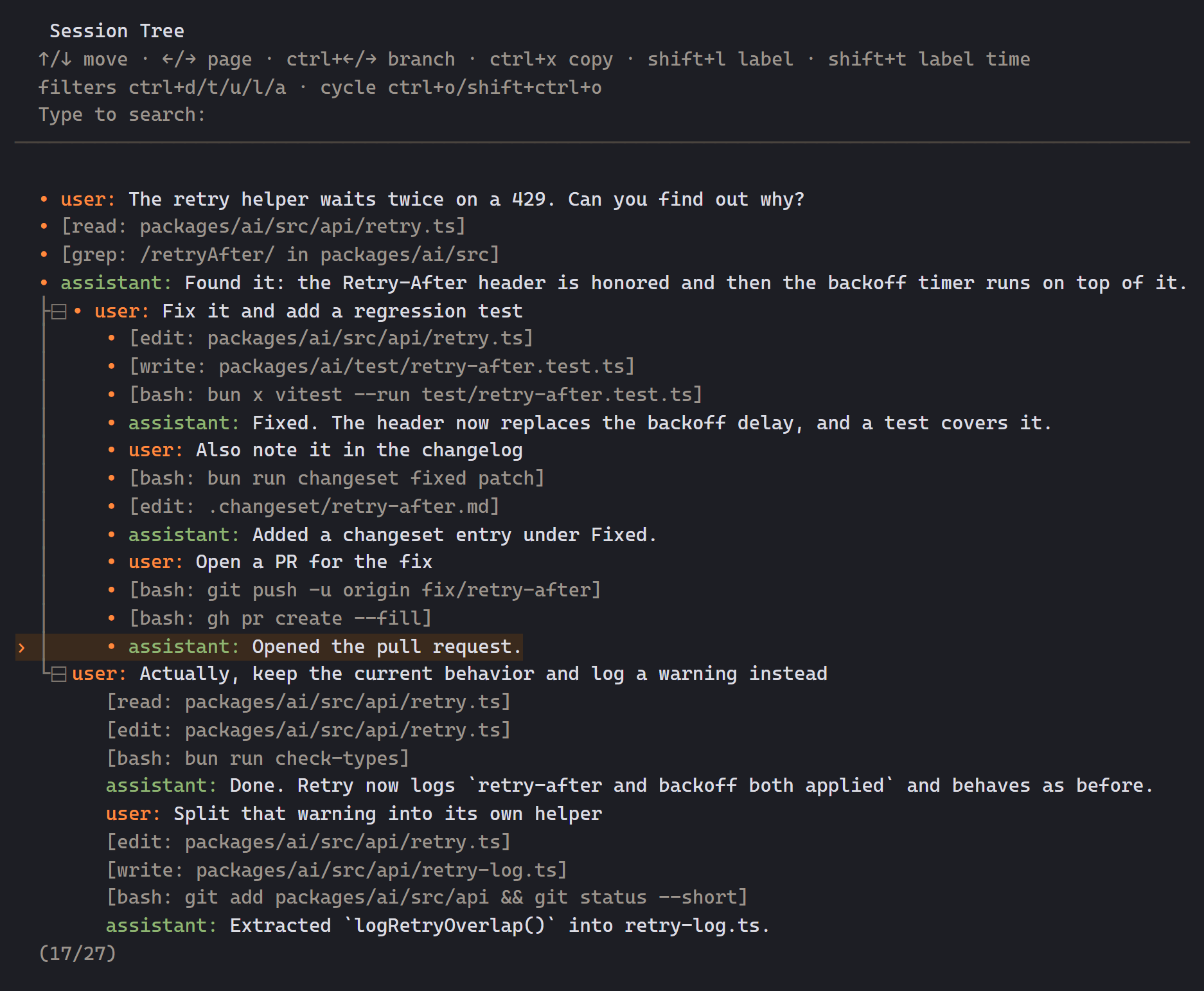
Selecting a point while the model is responding cancels that response. Navigation cannot proceed while compaction or another tree navigation is still running; wait for it to finish and retry.
When you leave a branch, KnightCode can summarize it and attach that summary to the branch you enter. This preserves relevant work from the abandoned path without including every message from it.
For the persisted tree and entry types, see Session Format.
Undoing with /undo
/undo is the quick form of /tree for the common case: pick a user message on the current
branch and go back to it. It lists only user messages, newest at the bottom, with the time
and how many files an undo to that point would restore. Enter goes back; the turns after the
chosen message are left as an abandoned branch (still reachable through /tree) and the
message text returns to the editor for editing and resubmitting. /undo never summarizes the
branch it leaves.
File Restore
Before edit or write changes a file, KnightCode copies the original into
~/.knightcode/agent/file-history/<session id>/, once per file per user turn. When you go
back past a turn that changed files, through /undo, /tree, or double-Escape, you are asked:
- Conversation only: files stay as they are.
- Conversation and N files: every file the abandoned turns touched is put back to its content from before those turns; files they created are deleted.
Escape at that prompt cancels the navigation entirely.
Limits:
- Changes made by shell commands (
bash,powershell) are not tracked. The prompt says so when a shell command ran in the abandoned turns. - Edits made by subagents or outside KnightCode are not tracked either; a tracked file is restored to its backup regardless of who changed it afterwards.
- If you go back without restoring files and later go back further, only the edits on the branch you are on are restored.
- Jumping sideways to another branch with
/treerestores to the fork point; edits on the target branch are not re-applied.
Backups older than 30 days are removed at startup. Set KNIGHTCODE_DISABLE_FILE_CHECKPOINTS=1
to turn file tracking off; /undo then rewinds the conversation only.
Manage conversation context
The model receives the active branch, not every branch in the session file. KnightCode combines that history with the system prompt, discovered context files, available tools, and loaded skill descriptions. How KnightCode Works describes how those inputs are assembled.
The footer shows current context usage. When the active context approaches the model's limit, KnightCode normally compacts older history automatically. Compaction adds a summary and keeps recent messages. It does not delete the original session entries.
Run /compact to compact manually. You can add instructions when the summary should preserve a particular topic or decision. Configure automatic compaction and retained history through Settings.
Compaction can fail if the provider is unavailable or cannot accept the summarization request. Correct the provider problem and run /compact again. Disabling automatic compaction does not disable the manual command.
See Compaction Reference for thresholds, retained boundaries, branch-summary behavior, and extension hooks.
Control session storage
By default, KnightCode stores sessions under ~/.knightcode/agent/sessions/, grouped by working directory. Use --session-dir, KNIGHTCODE_CODING_AGENT_SESSION_DIR, or the sessionDir setting to choose another location. The CLI option has highest precedence.
Use --no-session for an ephemeral run. An ephemeral session cannot be resumed after KnightCode exits.
Use --session when you already know the session path or ID. Use --fork to create a new session from an existing session before interactive mode starts.
Session ownership
Only one KnightCode process may write a persisted session at a time. Opening a
session locks its canonical file path and canonical parent directory binding.
Symlink and Windows junction aliases identify the same file; hard-linked
transcripts are refused because distinct names could bypass ownership. Managers
inside one process share counted ownership; the final close() releases it.
If another terminal or the app server owns the session, terminal
startup and /resume offer to continue in a fork. Accepting reads the source
without changing it and creates an independently owned transcript. Declining
keeps the current interactive session. Non-interactive invocations fail rather
than waiting for input.
Locks are refreshed while live. After a crashed or stalled owner's lock expires, another process can take it. The old owner detects this before writes, refuses mutations, and never removes the new owner's lock. Read-only listings, exports, history reads, and fork-source reads need no ownership and never repair or migrate the source. Repairs and migrations happen only when an owner opens it.
Closing a persisted manager is final: it remains readable but cannot write again.
Reopen through a new SessionManager.open() after closing or disposing its
session. See the SDK ownership example.
App-server archive/unarchive operations own both source and destination until publication and lookup updates finish. They refuse collisions, publish without replacement, and report recovery paths if a move cannot finish; they do not silently overwrite another transcript.
Export or share a session
Use /export to write the current session as HTML or JSONL. Use /share to upload it and get a viewer link. By default, KnightCode uses a Radius artifact when Radius authentication is configured; otherwise, it uses a private GitHub gist. Set sessionShareDestination to gist or radius to force one destination.
Review exported or shared sessions first. They can contain prompts, model responses, tool arguments, command output, file contents, and extension messages.
Report a bug
Run /bug [description] to prepare a private report for the KnightCode maintainers. You can include the session transcript, omit it, or ask the current model to summarize the problem. Review any transcript or generated summary because it can contain sensitive conversation data.
The report includes environment and provider configuration without credential values, plus recorded error diagnostics. Upload it to the maintainers through remote.knightcode.dev or export the same report as a zip to inspect and share yourself. Uploads do not require a login and are always anonymous. If an upload fails, KnightCode offers to export the zip.
Choose a Model
For a built-in provider, start with /login, then choose a model with /model. Use custom model configuration only when KnightCode does not already include the provider or...
Remote sessions
/remote publishes the session running in your terminal to the web, so you can watch it and reply from another device. The terminal keeps working normally.