
Quickstart
KnightCode runs in your terminal and works with files on your machine. To use it, you need access to a model through a supported provider. This can be a subscription, an API...
KnightCode runs in your terminal and works with files on your machine. To use it, you need access to a model through a supported provider. This can be a subscription, an API key, or a local model.
For native Windows setup, read Windows Setup. For Android, read Termux Setup.
1. Install KnightCode
On macOS or Linux, you can use the installer. It installs Node.js 22.19 or newer if Node is missing or older, then installs KnightCode for your user:
curl -fsSL https://knightcode.dev/install.sh | shAlternatively, install KnightCode from npm. This requires Node.js 22.19 or newer:
npm install -g --ignore-scripts @knightcodeai/cliKnightCode does not require dependency lifecycle scripts for a normal npm installation.
Verify the installation:
knightcode --versionSupported installations download updates in the background during interactive
sessions. When the green Restart for vX.Y.Z notice appears above the input,
exit and relaunch when convenient. You can also run knightcode update manually. See
Updating KnightCode for supported installs
and how to disable automatic downloads.
2. Start KnightCode
Change to the folder you want KnightCode to work with, then start it:
cd /path/to/folder
knightcode
The working folder helps KnightCode discover relevant files, instructions, and configuration. KnightCode also uses it to group saved sessions.
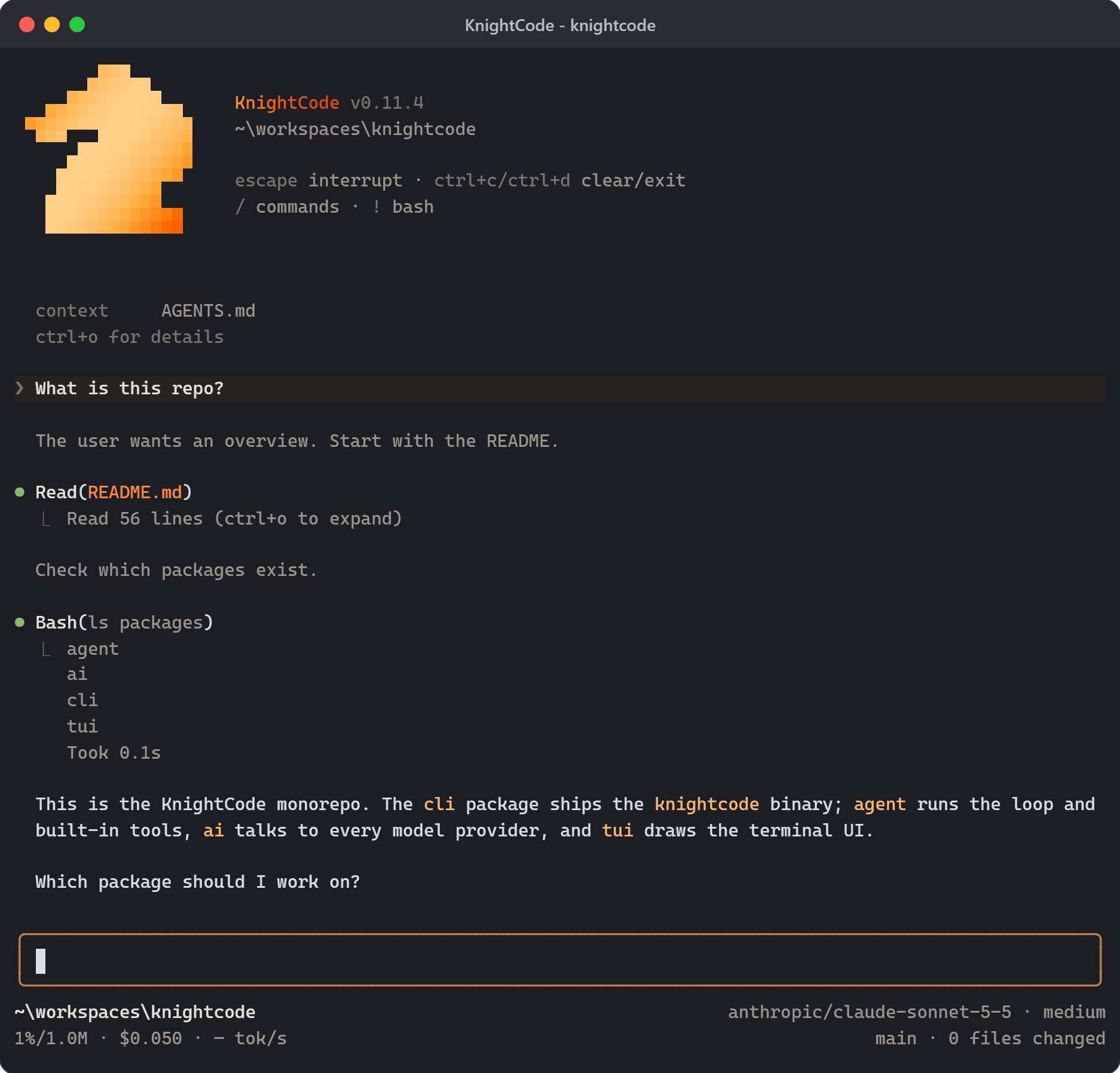
The interface shows your conversation, an editor for prompts and commands, and a footer with the current folder, model, and session status. See Use KnightCode in the terminal to learn how to add files, run commands, direct ongoing work, and manage results.
3. Choose a model
A model generates KnightCode's responses. A provider is the service or account KnightCode uses to access that model.
In KnightCode, run:
/loginChoose a provider, then follow the prompts to use a subscription or store an API key. Run /model afterward if you want to select a different available model.
See Choose a model and provider for supported providers, environment-variable authentication, local models, and custom endpoints.
4. Give KnightCode a task
KnightCode shows each file read, search, command, and edit it performs. It does not ask before every tool call.
Enter a task that matches your work, for example:
Summarize @meeting-notes.md and save the action items to action-items.md.Explain how this repository is structured and how to run its checks.Compare @previous.csv with @current.csv and summarize the important changes.Type @ in the editor to search for a file instead of entering its full path. When KnightCode finishes, review its response and any changed files. Use version control or backups for important work. For untrusted or unattended work, use a container or another sandbox. See Security.
Continue later
KnightCode saves sessions automatically. Exit KnightCode, then resume the most recent session for the same working folder with:
knightcode --continueUse /resume to choose another saved session. See Continue or branch a session for session naming, branching, compaction, export, and sharing.
Next steps
- Use KnightCode interactively to learn input, commands, shortcuts, and queued messages.
- Add instructions that KnightCode should follow whenever it works in a folder.
- Choose a model and provider.
Choose how to customize KnightCode
Start with the least powerful mechanism that meets your need:
| Need | Start with |
|---|---|
| Give KnightCode persistent instructions for a folder | AGENTS.md |
Reuse a prompt from the / menu | Prompt template |
| Add task-specific instructions and supporting files | Skill |
| Add executable tools, commands, or event handlers | Extension |
| Build a custom terminal component | Terminal UI |
| Connect an unsupported model service | Custom provider |
| Install or distribute several resources | KnightCode package |
Uninstall KnightCode
If you installed KnightCode with npm, run:
npm uninstall -g @knightcodeai/cliIf you used the installer, run it again and choose Uninstall KnightCode:
curl -fsSL https://knightcode.dev/install.sh | shNeither method removes configuration, credentials, sessions, or installed KnightCode packages from ~/.knightcode/agent/.
KnightCode
KnightCode is an extensible AI agent that works from your terminal. Give it a goal and a working folder, and it can inspect files, run commands, edit content, and work through...
How KnightCode Works
KnightCode coordinates model requests, tool execution, context assembly, and session storage. A session is KnightCode's record of a conversation, including messages, tool calls...